
Step by step
Every task, one simple step at a time.
Like TurboTax, for home care: one question per screen, a quick check, then done.
These flows are in the app or being built now. Open an area to see its steps.
Billing
Start billing · Fix a denied claim · Record a payment
Start billing
Real app screens, demo data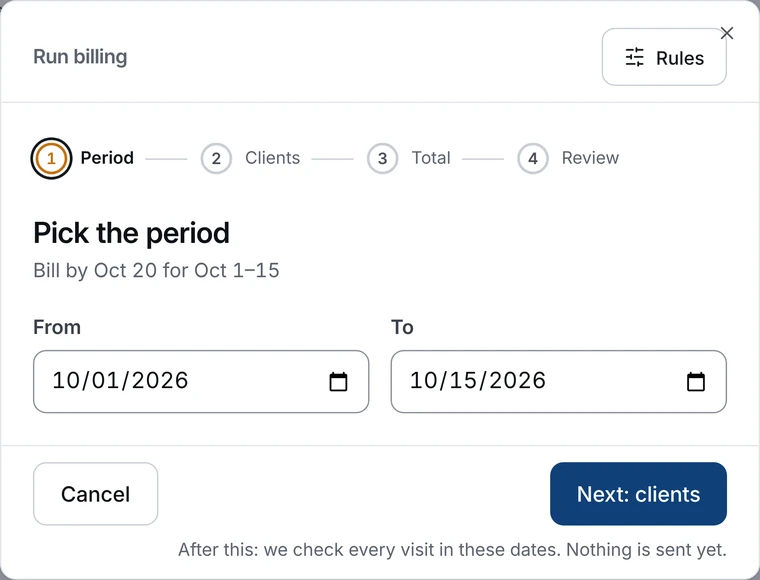
Step 1 · Pick the period 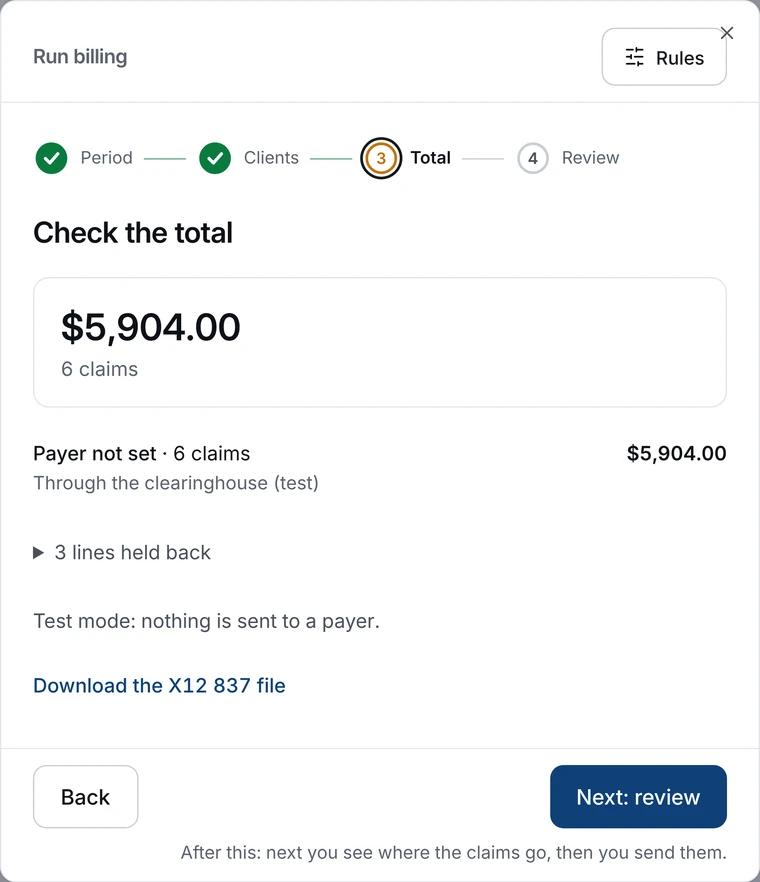
Step 3 · Check the total 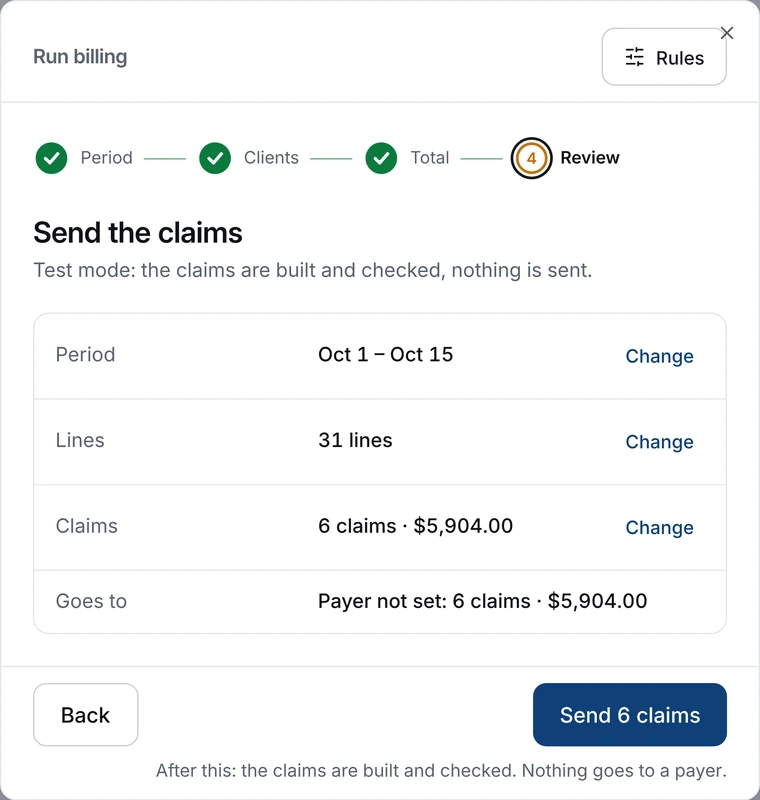
Step 4 · Send the claims Done
After this: The claims go out, and each one shows its status as answers come back.
- Pick the period
- Check each client
- Split out high-risk claims (Minnesota)
- Check the total, then review and send
- Done
Fix a denied claim
Drawn steps- Open the denial
- See the reason
- Fix it and resend
- Done
After this: The claim goes back out, with the fix on record.
Record a payment
Drawn steps- Pick the payment
- Match it to claims
- Save
- Done
After this: The matched claims show as paid.
Clients
Client intake · Add a client · Service plan · Renew an authorization
Client intake
Drawn steps- The referral
- The first call
- Intake forms (AI reads the paperwork)
- Hand it to the nurse
- Done
After this: Each answer is asked once and filled into every form that needs it.
Add a client
Real app screens, demo data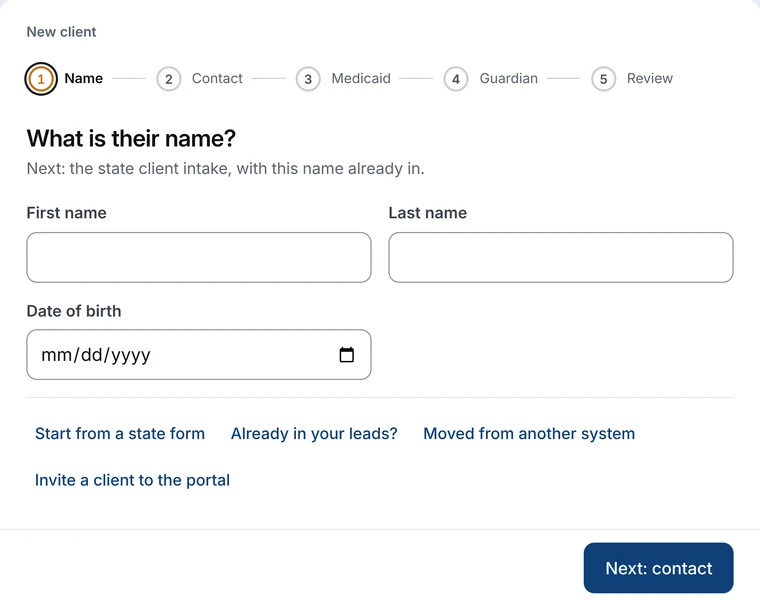
Step 1 · Their name 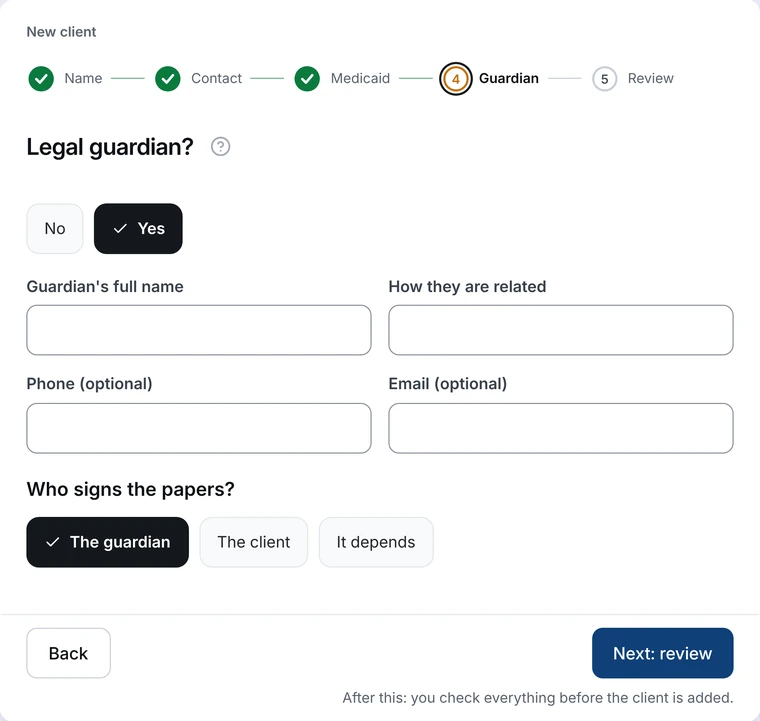
Step 4 · Legal guardian Done
After this: The client is ready for a service plan.
- Name and contact
- Medicaid
- Guardian
- Review
- Done
Service plan
Drawn steps- Write the plan
- The guardian signs
- The nurse signs
- Done
After this: The plan is signed and visits can be scheduled from it.
Renew an authorization
Drawn steps- Open the one that’s expiring
- Enter the new dates and units
- Save
- Done
After this: Scheduling counts against the new units.
Caregivers
Background checks · I-9 check · Certificate signing · Add a credential
Background checks
Real app screens, demo data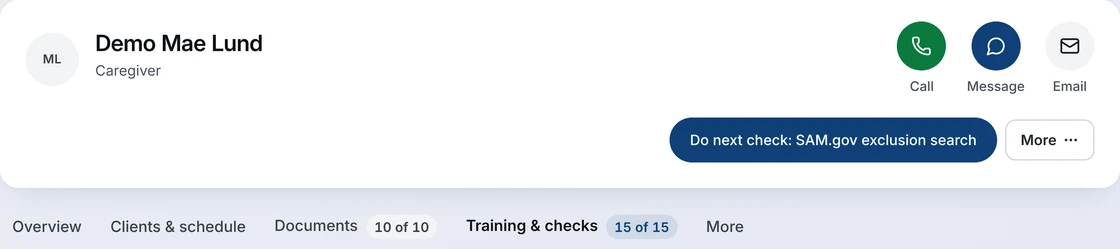
Do the next check Done
After this: One check at a time; the hire’s checklist shows what’s done and what’s left.
- Open the next check
- Enter the result
- Go to the next one
- Done
I-9 check
Real app screens, demo data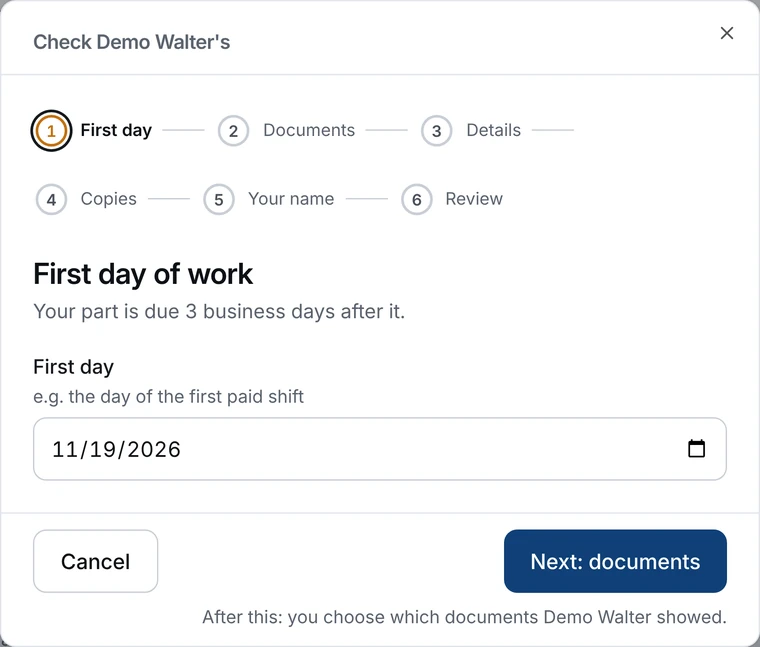
Step 1 · First day of work 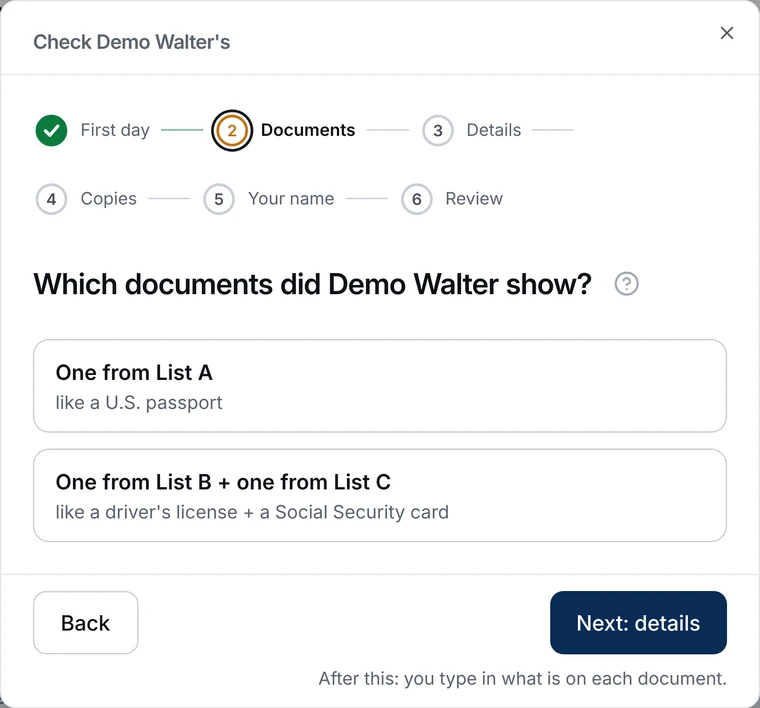
Step 2 · Which documents 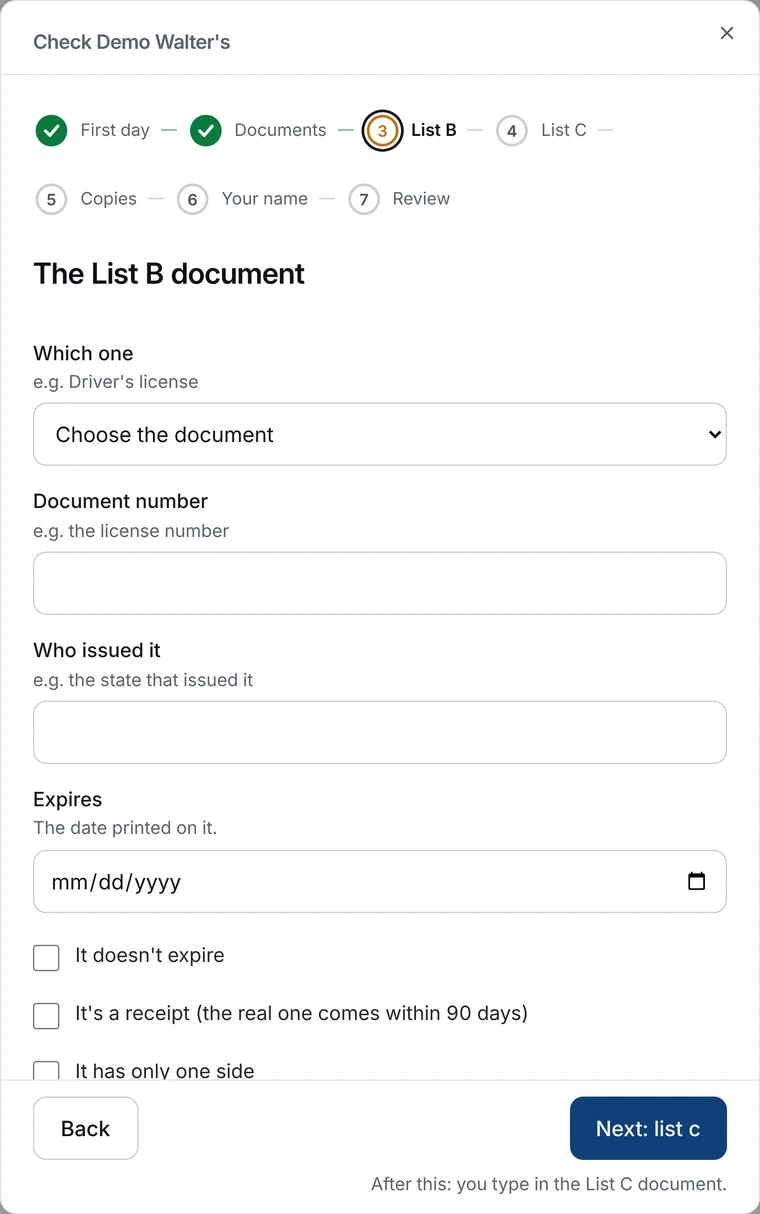
Step 3 · Document details Done
After this: The I-9 is saved with the hire’s record.
- First day of work
- Which documents
- Document details
- Review and sign
- Done
Certificate signing
Drawn steps- Open the certificate
- Review it
- Sign
- Done
After this: The signed certificate is saved to the caregiver’s file.
Add a credential
Drawn steps- Pick the type
- Upload it
- Set the expiry date
- Done
After this: It shows on the expiring list before it runs out.
Visits
EVV review · Fill an open shift · Build a schedule from the plan
EVV review
Drawn steps- Open a flagged visit
- Approve or fix it
- Next visit
- Done
After this: Approved visits are ready to bill.
Fill an open shift
Drawn steps- Open the shift
- Pick a caregiver
- Send the offer
- Done
After this: The caregiver sees the offer in the app.
Build a schedule from the plan
Drawn steps- Pick the client
- Check the plan’s hours
- Create the visits
- Done
After this: The visits show on the caregivers’ phones.
Nurses
Nurse intake · Home visit · Competency review
Nurse intake
Drawn steps- Open the new client
- Answer the assessment
- Write the care plan
- Sign
- Done
After this: The assessment and plan are filed with the client, ready for the client to sign.
Home visit
Drawn steps- Start the visit
- Fill in the visit form
- Sign
- Done
After this: The signed note is saved with the client.
Competency review
Drawn steps- Pick the caregiver
- Check each skill
- Sign
- Done
After this: The review is saved to the caregiver’s file.
Office
Send a form for signature · Incident report · Add a user
Send a form for signature
Drawn steps- Pick the form
- Add who signs
- Send
- Done
After this: You see when it’s signed, with its certificate.
Incident report
Drawn steps- What happened
- Who was involved
- Submit
- Done
After this: It goes to the person who reviews incidents.
Add a user
Drawn steps- Name and email
- Pick the role
- Send the invite
- Done
After this: They sign in and see only what their role allows.
Built to cut paperwork time by more than half.
Asked once. Filled everywhere.
Intake: 29 questions instead of 62 blanks.
A typical state Medicaid home care intake packet: 38 forms, 62 blanks, and the client’s name written 14 times. In Compliance Pro, it’s 29 questions, each asked once, and every answer lands on every form where it belongs.
Caregiver onboarding: 9 forms, 40 blanks, 17 questions.
Based on one state’s Medicaid in-home intake packet (state and agency forms), November 2026.
Home care software shouldn’t be this hard.
Most EHRs were built by software companies looking in from the outside. You get long forms, buried buttons and billing you need a class to run.
Compliance Pro was built from inside home care.
We run home care agencies ourselves. We’ve done the intakes, chased the signatures, sat through the state audits, and waited on the claims. Every screen is built the way the work actually happens, one step at a time.
Built by operators, not just developers.